



.svg)
.svg)
.svg%201.svg)



Get Business Email
No domain name required

Claude can do more than write an email that you copy and paste into your inbox. With the right Claude email integration, it can search messages, summarize long threads, draft replies using the conversation context, send emails, find contacts, and manage calendar events from the Claude interface.
The setup depends on your email hosting provider. Neo Mail connects to Claude through Model Context Protocol, or MCP. Gmail uses Claude's Google Workspace connector, while business Outlook accounts use the Microsoft 365 connector.
This guide explains how to connect Claude to email, what each connection can do, and how to use it safely for everyday inbox work.
Claude email integration options at a glance
What is Claude email integration?
Claude email integration is a secure connection that gives Claude permission to work with a supported mailbox. Instead of manually copying a professional email into a chat, you can ask Claude to retrieve the relevant message and help complete the next step.
For example, you can ask Claude to:
- Show unread emails received today
- Find a proposal sent to a specific client
- Summarize a long customer conversation
- Draft a response based on the complete thread
- Send an approved follow-up email
- Find messages with attachments
- Look up a contact
- Check calendar availability
- Create a meeting after confirming the time
The connection does not give Claude unlimited access by default. You authenticate with the email provider, review the requested permissions, and control which tools Claude can use. Depending on the connector and settings, Claude may also ask for approval before sending an email or changing calendar information.
Quick comparison of Claude email integration methods
How does Claude connect to an email account?
Claude connects to email through either a built-in connector or MCP.
Built-in connectors are ready-made connections provided inside Claude. Gmail uses the Google Workspace connector. Outlook for business uses the Microsoft 365 connector.
Model Context Protocol, commonly called MCP, is an open standard created by Anthropic. It allows an AI assistant to connect to an external service and use approved tools from that service. Neo Mail provides a remote MCP server that connects its email, calendar, and contact features to Claude.
The practical experience is similar with either method. After authentication, you can give Claude instructions in everyday language instead of navigating through several inbox menus.
3 ways to get connected with Claude
1. Connect Claude to Neo Mail through MCP

Neo Mail is a business email platform designed for small businesses, freelancers, and professionals. It combines a custom email domain with a free domain option, an AI website builder, appointment booking, email campaigns, read receipts, templates, follow-up reminders, and other tools for managing customer communication.
Neo Mail also provides an MCP connection for Claude on select plans. Once connected, Claude can work with your Neo Mail emails, folders, labels, contacts, and calendar.
What Claude can do with Neo Mail
The Neo MCP connection allows Claude to:
- Search and read emails
- Send emails
- Browse email folders and labels
- Manage labels
- View calendars and events
- Check attendee availability
- Create calendar events
- Search contacts
This is useful for a small business owner who manages leads, client requests, proposals, appointments, and follow-ups through one professional inbox.
How to connect Neo Mail to Claude
Follow these steps to set up the Claude email integration:
- Open Claude and sign in to your account.
- Click Customize in the navigation menu on the left.
- Select Connectors.
- Click the plus icon in the upper right corner and select Add custom connector.
- Complete the fields in the Add custom connector window. In the Name field, enter Neo MCP. In the Remote MCP Server URL field, paste https://api.neo.space/mcp. Enter claude as the OAuth Client ID and leave the OAuth Client Secret field blank.
- Click Add, find Neo MCP in the connector list, and click Connect.
- Sign in with your Neo Mail email address and password.
- Review the requested permissions and click Allow Access.
- Return to Claude and confirm that Neo MCP appears as connected.
You can now start a new chat and ask Claude to work with your Neo mailbox. If the connection does not appear in a chat, check that Neo MCP is enabled under the active connectors.
Example prompts for Neo Mail
- “Show me unread emails received since yesterday.”
- “Find the latest email from Sarah about the website proposal.”
- “Summarize this client's email thread and list every open question.”
- “Draft a friendly follow-up for leads who have not responded to my proposal.”
- “Find emails received today that contain attachments.”
- “Check my availability this Friday afternoon.”
- “Create a 30-minute meeting with Alex tomorrow at 2 PM.”
Choose Neo Mail if: You want professional business email together with an easy Claude connection and tools for building your online presence and managing customer communication.
2. Connect Claude to Gmail or Google Workspace
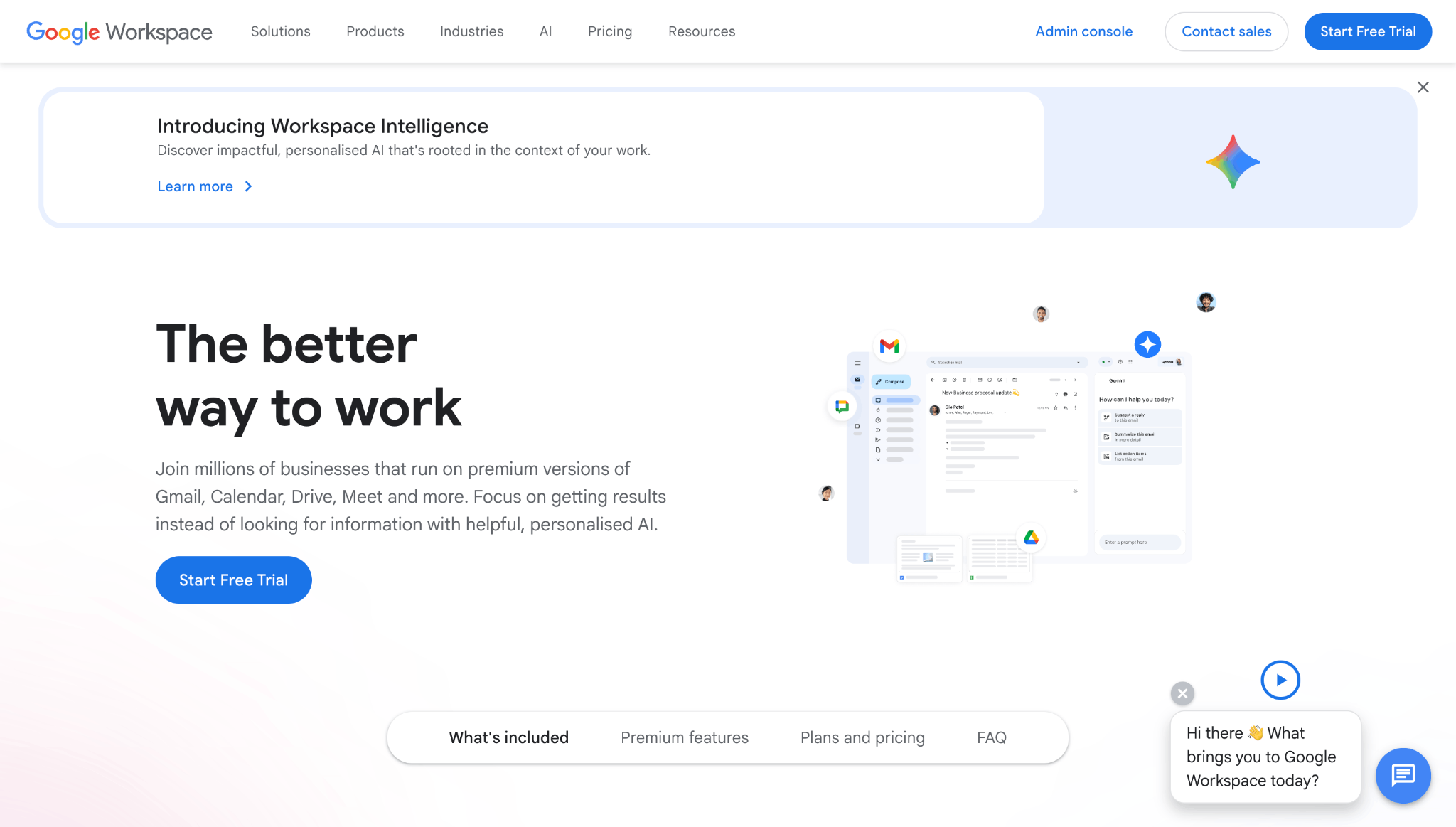
Claude has a built-in Google Workspace connector for Gmail, Google Calendar, and Google Drive. It is available to Claude users on the web and Claude Desktop. Team and enterprise organizations may require an owner or primary owner to enable the connector before individual members can authenticate.
What Claude can do with Gmail
With the Google Workspace connector, Claude can:
- Search and read Gmail messages using natural language
- Draft emails with formatting and conversation context
- Send, reply to, and forward emails
- View message and attachment metadata
- Manage labels and threads
- List saved Gmail drafts
- View and manage Google Calendar events
- Search and work with supported Google Drive files
Claude asks for approval before sending, replying to, or forwarding an email by default. Team and enterprise owners can decide whether members may allow certain actions without repeated approval.
How to connect Gmail to Claude
- Sign in to Claude.
- Open Customize and select Connectors.
- Find the Google Workspace connector.
- Select Connect and sign in to the Google account containing the Gmail inbox you want to use.
- Review Google's permission screen and approve the access you are comfortable granting.
- Return to Claude and make sure Gmail is enabled for the conversation.
Once connected, ask Claude a question that requires email access. Claude will identify the connector it needs and retrieve the relevant information. Its response can include links to the original emails used as sources.
Gmail limitations to consider
The Gmail connector can access attachment metadata, including the presence and details of an attachment, but it cannot directly read the attachment content through Gmail. Some advanced filters may also be unavailable, and performance can vary with very large mailboxes. Keep these limitations in mind when comparing Gmail alternatives.
Choose Gmail if: Your business already uses Google Workspace and wants Claude to work across email, calendar, and Drive.
3. Connect Claude to Microsoft Outlook
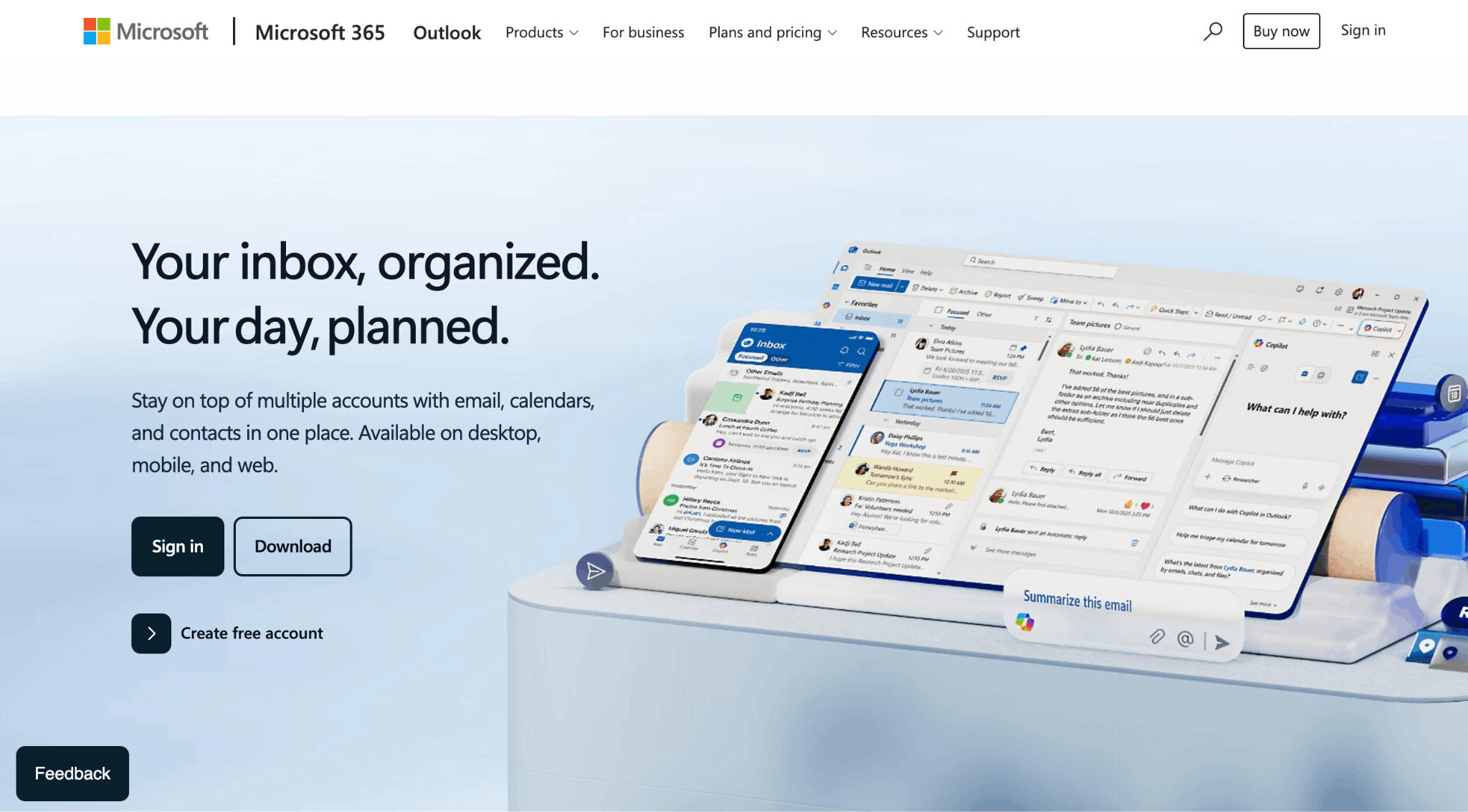
Claude also provides a Microsoft 365 connector that can work with Outlook, SharePoint, OneDrive, and Teams. The connector is intended for work accounts connected to a Microsoft Entra tenant. Personal addresses ending in @outlook.com, @hotmail.com, or @live.com are not supported.
What Claude can do with Outlook
After the connector is enabled, Claude can search and analyze Outlook email threads. If the organization's administrator enables write tools, Claude can also draft and send emails and manage calendar events.
This can help teams retrieve project updates, summarize client feedback, find decisions buried in long threads, and create responses using information from Microsoft 365.
How to connect Microsoft 365 to Claude
Microsoft 365 requires administrator involvement before most users can connect it.
- A Microsoft Entra Global Administrator grants one-time consent for the connector.
- On Claude Team and Enterprise plans, an owner or primary owner enables Microsoft 365 in Organization settings > Connectors.
- If the organization wants Claude to send emails or update calendar events, the administrator also enables the relevant write permissions.
- The individual user opens Customize > Connectors in Claude.
- Select Microsoft 365 and click Connect.
- Sign in with the eligible work account and complete authentication.
The Microsoft 365 connector is available across Claude plans, but it still requires a business Microsoft 365 account and tenant-level administrator approval. Keep these requirements in mind when comparing Outlook alternatives.
Choose Microsoft 365 if: Your organization already runs on Outlook, Teams, SharePoint, and OneDrive and has an administrator who can configure the connection.
What can Claude automate in your inbox?
Connecting Claude to email reduces the manual work involved in finding information and preparing the next action. The most useful workflows usually fall into the following categories.
1. Summarize long email threads
Ask Claude to summarize a conversation, identify commitments, and list unanswered questions. This is useful before a client call or when another team member has handled the earlier discussion.
Example prompt: “Summarize my complete thread with Greenway Design. Separate confirmed decisions, pending questions, deadlines, and next steps.”
2. Draft context-aware replies
Claude can use the existing thread to prepare a reply that addresses the sender's questions. You can specify the tone, length, and outcome you want.
Example prompt: “Read the latest message from David and draft a concise reply confirming the revised deadline. Keep the tone warm and professional.”
3. Find messages without complex searches
Natural language search can be faster than remembering an email provider's search operators.
Example prompt: “Find the email from the photographer that included the final invoice sometime last month.”
4. Prepare daily inbox summaries
Claude can review recent messages when asked and group them by urgency, sender, or required action.
Example prompt: “Review today's unread emails. Group them into urgent, reply today, waiting for information, and no action needed.”
5. Manage follow-ups
Ask Claude to find conversations where you expected a response and draft appropriate follow-ups. Always review the result before contacting the recipient.
Example prompt: “Find proposals I sent in the past seven days that have not received a reply. Draft a short follow-up for each, but do not send anything yet.”
6. Coordinate meetings
When the email connection also includes calendar access, Claude can check availability and create an event after the time is agreed.
Example prompt: “Check whether I am free Wednesday between 2 PM and 5 PM. Draft a reply offering the available 30-minute slots.”
Does Claude automatically monitor new emails?
A normal Claude email integration is primarily request-based. Claude searches or acts when you ask it to do something. Connecting a mailbox does not necessarily mean Claude continuously watches every incoming message or responds in the background.
Continuous automation, such as classifying every new email or triggering a reply whenever a lead arrives, usually requires a separate automation platform, custom MCP workflow, or agent system. Businesses should add strict rules, approval steps, and monitoring before allowing any system to send messages without human review.
For most small businesses, request-based automation is the safer starting point. It provides the benefit of faster inbox work while keeping a person in control of sensitive actions.
Security practices for connecting Claude to email
An email account can contain customer details, invoices, contracts, passwords, and confidential conversations. Treat the connection as access to business data, not simply as a writing feature.
Use a personal Claude account: Do not connect a business mailbox to a shared or public Claude login. Other people using the same Claude session may be able to access the connected account.
Review permissions before approval: Confirm what the connector can read or change. Grant only the access required for the intended workflows.
Keep approval enabled for sending: Requiring confirmation before Claude sends an email reduces the risk of contacting the wrong person or sending an incomplete response.
Use trusted connectors: Only add MCP server addresses published by the email provider or another source you trust. A custom connector can access and act on data within its approved permissions.
Protect both accounts: Enable two factor authentication for your email and Claude accounts, use strong passwords, and sign out of unused sessions.
Disconnect access when it is no longer required: Remove the connector if you stop using it, change providers, or suspect that an account has been accessed by someone else.
Verify important output: Review names, dates, amounts, attachments, recipients, and commitments before approving a message or calendar action.
Which Claude email integration should you choose?
The best method depends on the email service your business already uses and the amount of setup it can manage.
- Choose Neo Mail if you want a professional email address, an easy MCP connection, a free domain option, a free AI website builder, and customer communication tools in one service.
- Choose Gmail if your team already works in Google Workspace and needs Claude across Gmail, Calendar, and Drive.
- Choose Microsoft 365 if your organization uses Outlook, Teams, SharePoint, and OneDrive and has administrator support.
For a new small business, Neo Mail provides the most complete starting setup. A business can create a professional email address even without an existing domain, then connect the mailbox to Claude and manage emails, calendar tasks, and contacts through natural language.
Conclusion
Claude email integration turns Claude from a separate writing tool into a practical assistant for everyday inbox work. Once the connection is authorized, Claude can find messages, summarize conversations, prepare replies, send approved emails, search contacts, and help coordinate meetings.
The connection method depends on the provider. Neo Mail uses a remote MCP connector, Gmail uses the Google Workspace connector, and business Outlook accounts use Microsoft 365.
The most useful setup is not the one that gives Claude the widest possible access. It is the one that saves time while preserving clear permissions and human review. Begin with search, summaries, and draft creation. Add sending or calendar actions only after the workflow is predictable and the approval settings are appropriate.
Frequently asked questions
1. Can Claude connect directly to email?
Yes. Claude can connect to Neo Mail through MCP, Gmail through the Google Workspace connector, and business Outlook accounts through the Microsoft 365 connector. Available actions and setup requirements depend on the provider and plan.
2. Does Claude have access to email?
Claude does not have access to your email by default. It can access a supported inbox only after you connect your account and approve the required permissions. Neo Mail users can connect their email, calendar, and contacts to Claude through Neo MCP.
3. How to use Claude for email?
Connect your email account from Customize > Connectors in Claude. Neo Mail users can add Neo MCP and authorize their mailbox. Once connected, you can ask Claude to find emails, summarize conversations, draft or send replies, search contacts, and manage calendar events.
4. How do I connect Claude to email?
Open Claude and go to Customize > Connectors. Select a built-in connector for Gmail or Microsoft 365, or add the official remote MCP server details for Neo Mail. Sign in to the email account, review the requested permissions, and authorize the connection.
5. Can Claude read and send emails?
Yes, supported connectors can let Claude search, read, draft, and send emails. Some connections require administrator approval or a supported plan. Sending may also require your confirmation, depending on the connector and permission settings.
6. Can Claude connect to a business email that is not Gmail or Outlook?
Yes. Neo Mail provides an MCP connection for Claude that allows it to work with business email, calendar, and contact data through natural language prompts.
7. Is it safe to connect Claude to email?
It can be safe when you use an official connector, review permissions, protect both accounts, keep approval enabled for sensitive actions, and avoid shared Claude logins. Always review recipients, facts, attachments, and commitments before sending an AI-drafted message.
8. Can Claude automatically reply to every new email?
The standard connectors are primarily designed for actions you request in Claude. Automatically processing every incoming email generally requires a separate workflow or agent system. We recommend human approval before sending external messages.
Get Business Email
No domain name required
