


.svg)
.svg)
.svg%201.svg)



Get Business Email
No domain name required

It won’t be wrong to call Gmail a powerful email application. The best part is that it enables you to open multiple accounts free of cost! That is why several users also have a second Gmail account that they use as an alternative for several purposes.
Google even allows you to merge all email addresses into a single inbox, enabling you to send messages from a single account.
You can use Gmail for personal and business purposes and random purposes like subscriptions, newsletters, etc. In this way, you can have different Gmail accounts for different purposes.
For those who have yet to create a second Gmail account, we have curated this guide specifically to simplify the process. So, without further ado, let’s dig in!
Creating a Second Gmail Account on the Desktop
You can link several Gmail addresses to what is usually termed as your primary account. Now, we will delve into how to create a second Gmail account on your computer.
Step 1: Go to your computer’s system and open Gmail.
Step 2: Check the top-right corner of your screen and click on your profile picture.
Step 3: Select ‘add another account’ from the dropdown menu.
Step 4: Click on the ‘Create an account’ tab.
Step 5: At this point, Google will give you three options. These include opening the account for ‘personal use,’ ‘your child,’ or ‘work.’ Pick either option.
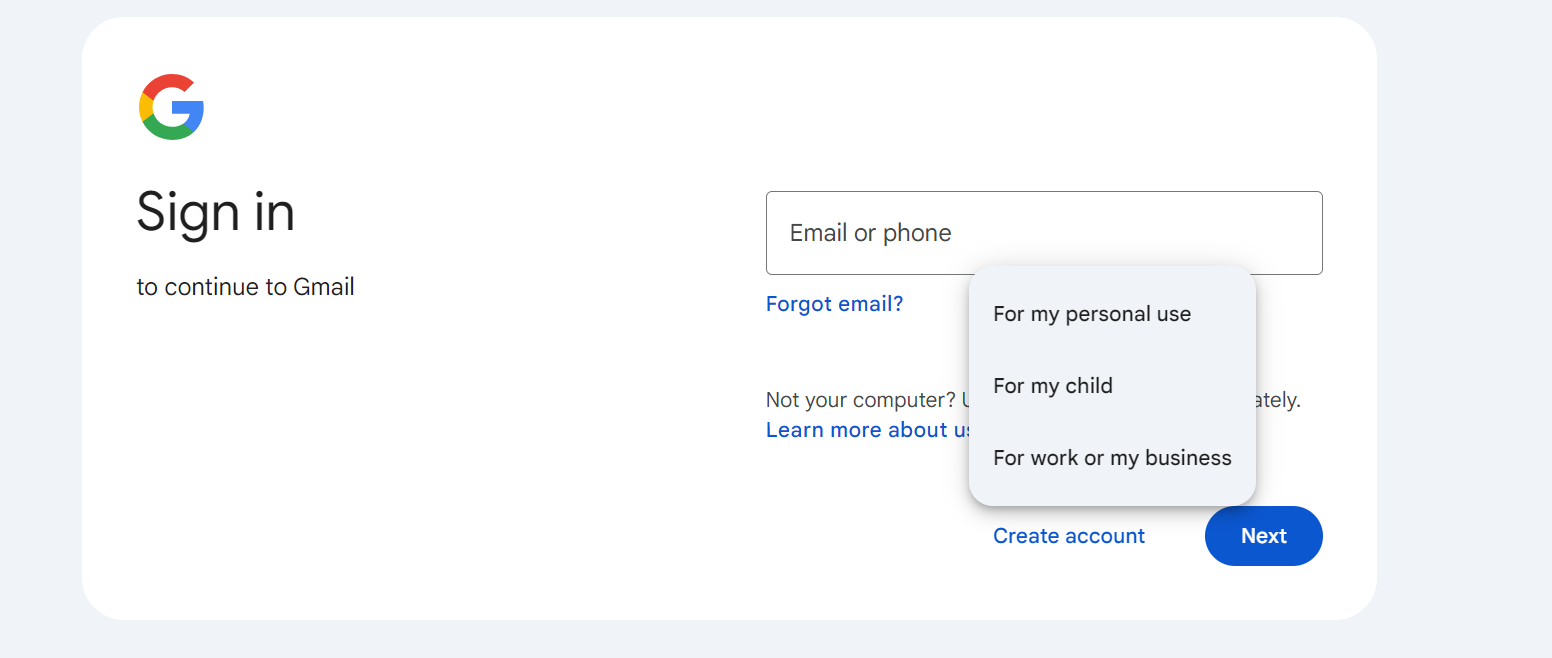
Step 6: You will then see a pop-up screen with a form where you need to enter the relevant information. Then, click ‘next.’
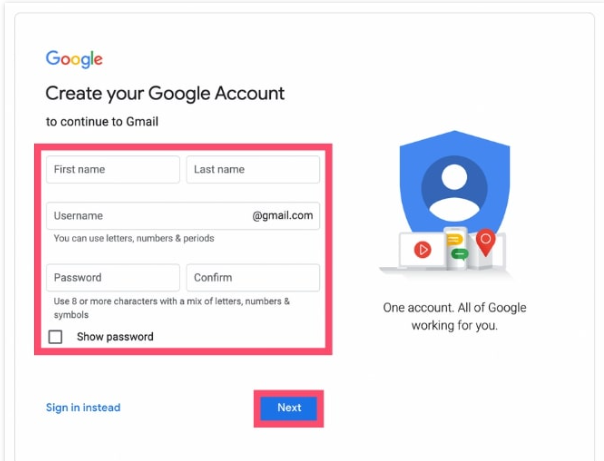
Step 7: You will be asked to enter more information here, like your recovery email address, contact number, and date of birth. Fill as necessary and click on ‘next’ again.

Step 8: Now, all you need to do is choose the personalization settings on Google. Select ‘express personalization’ to get the information updated automatically. Alternatively, you can select ‘manual personalization’ and add things yourself.
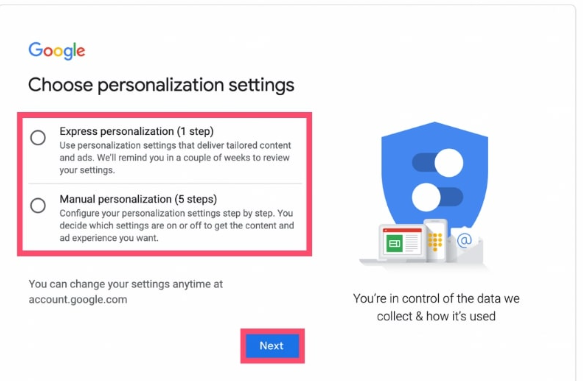
Step 9: Read the terms of service and privacy policy showcased by Google and select ‘I agree’ to enjoy using your second Gmail account. Hence, your second Google account is ready.
Create a Second Gmail Account with an Android Phone
Creating a second Gmail account on your Android phone is slightly different from a desktop. The steps include:
Step 1: Use any of your Android phones or tablets to access the Gmail app.
Step 2: Then go straight to your profile picture and tap on it. You can do it easily on the Gmail app on Android.
Step 3: Select the ‘Add another account’ from the same section.
Step 4: Add another Gmail account to the system now.
Step 5: The system asks you to choose the type of email account you want for yourself. The options often include Google, Outlook, or any other email service providers.
Step 6: If you choose Google, you will have two options. Either add your existing Gmail account or tap on the option to create a new one.
Step 7: You may also have to provide some personal information in addition to adding your name. Then, pick one of the recommended email addresses or draft one for yourself.
Step 8: Do not forget to check Google’s Terms of Service and Privacy Policy and select the ‘I agree’ option. And your Gmail account is ready.
Steps to Merge Your Gmail Addresses Together
Now that you know how to create a second Gmail email account let us look at some other ways that will help you conduct your operations efficiently. This includes merging multiple Gmail accounts into a single inbox. This means you will be able to send and receive messages from a single platform through the process.
The steps include:
Step 1: Open your Gmail account, which is usually the primary one.

Step 2: Click on the settings section and go to ‘see all settings.’

Step 3: Visit the “Accounts and Import” tab and click on ‘Add another email address.’
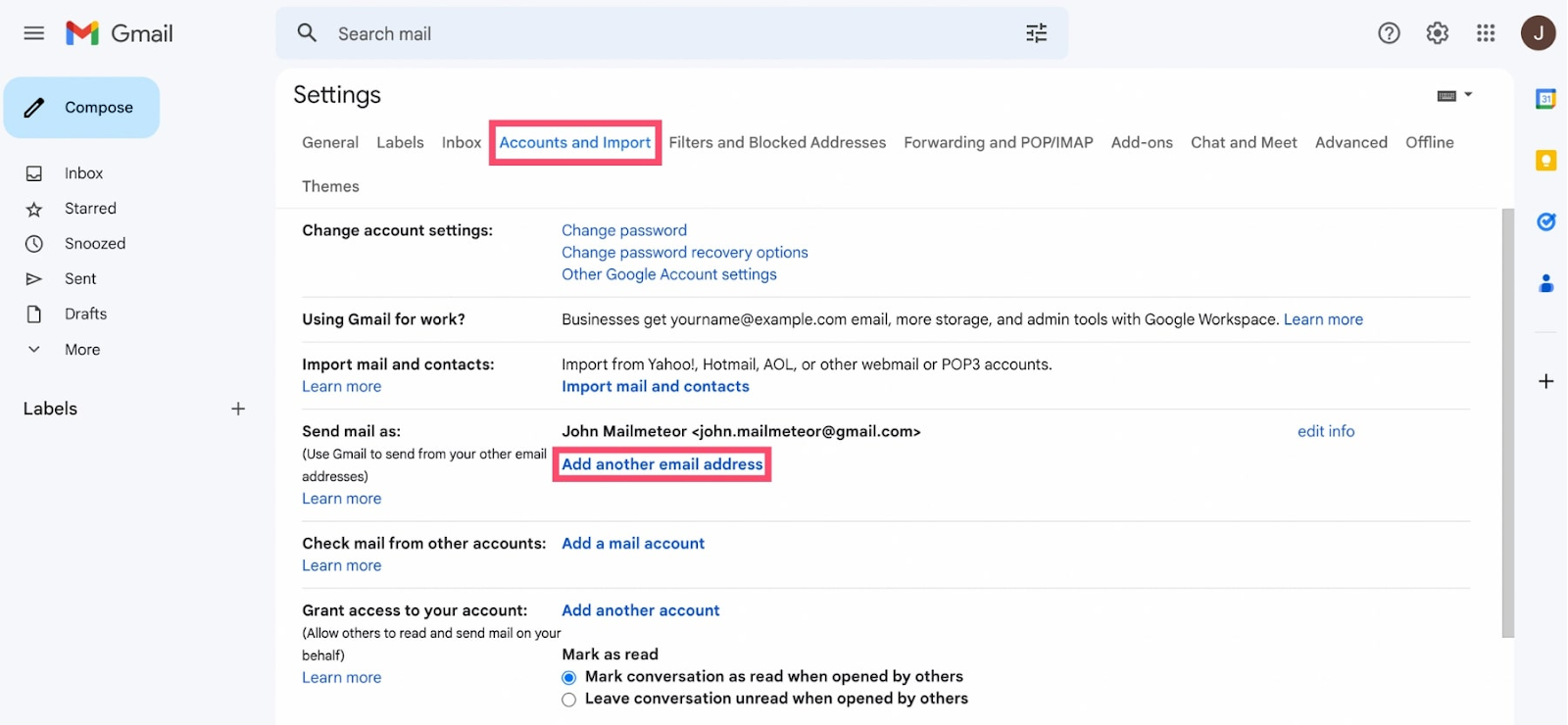
Step 4: Enter your alternate email address and give it a name, if necessary. Check the ‘Treat as an alias’ box and then the ‘Next step’ option.
Step 5: You will immediately get a confirmation email from Gmail to your secondary account. Make sure to sign into the account and click the link.
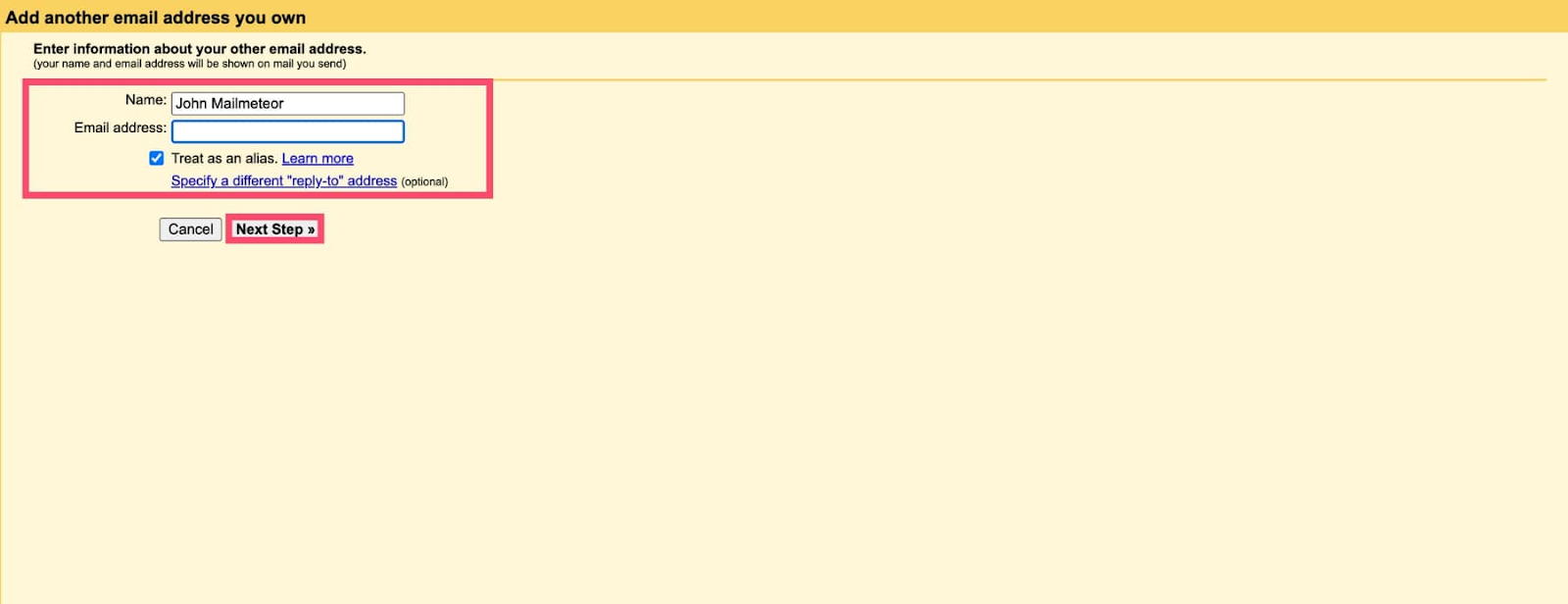
Step 6: Now, you can easily send emails from your primary inbox with the secondary Gmail address.
Gmail Alternatives that Enable You to Create Second Email Accounts
Gmail is not the only market platform enabling you to create a second email account. Yes, we have several other service providers offering similar features that include:
1. Neo

Neo is the best-recommended email service for all kinds of small businesses and solopreneurs. If you are someone wanting to build a custom email address, then Neo is the best option for you. You can create as many accounts as you want on the platform, including a domain name for your business. Moreover, it does something that Gmail has not done for its users yet - a free one-page website along with the account. So, you can create your brand identity easily with Neo’s advanced features.
Key Features
- Free one-page website
- Custom domain name
- Works on any mobile, desktop, laptop, or operating system
- Tools like turbo search, email templates, appointment scheduler, priority inbox, etc.
- Smart Write, an AI-assistant tool to write better emails
- Signature Designer for sending bulk emails
2. Zoho Mail
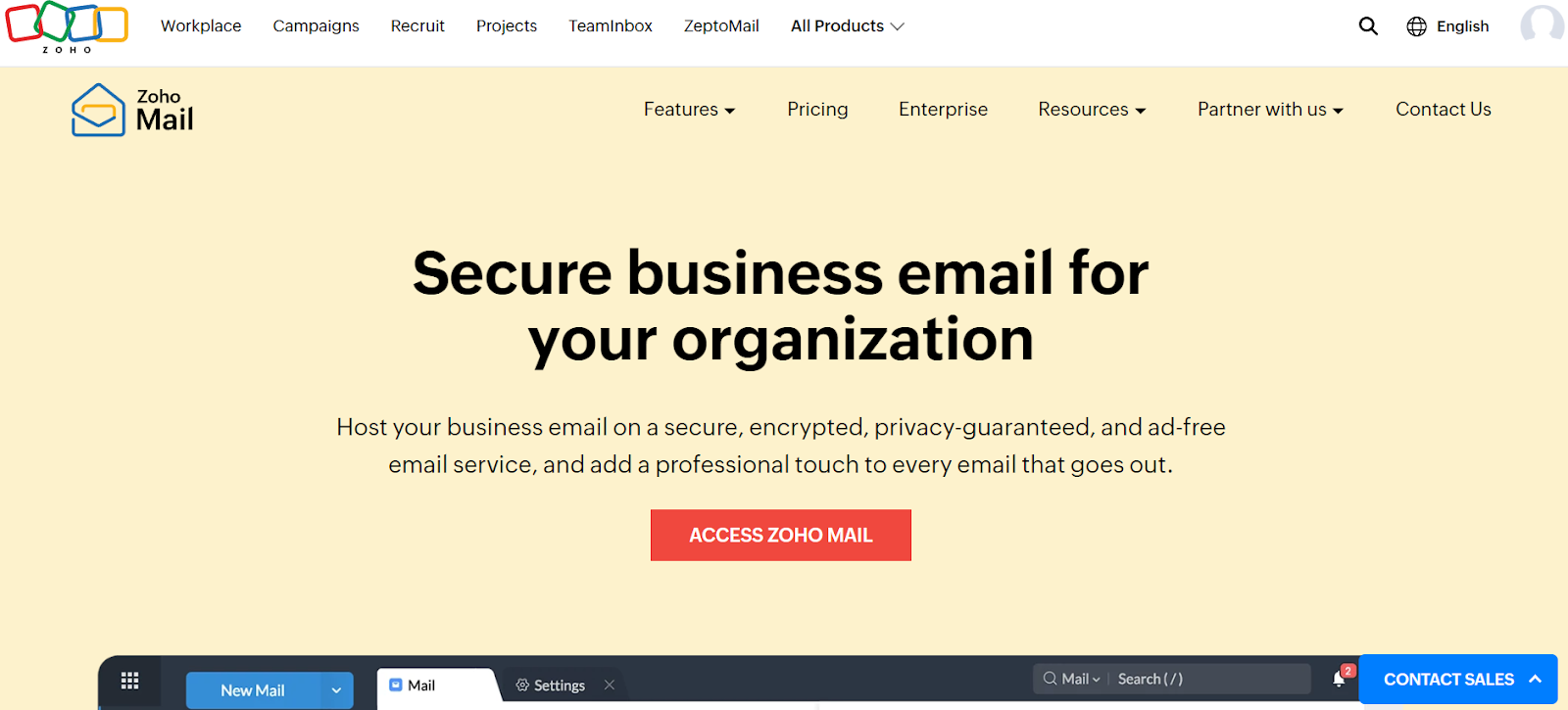
Zoho Mail is another Gmail alternative that enables you to open a second email account instantly. The platform is for opening professional emails not only for individuals but also businesses. You will like working with its advanced features like tasks, calendars, and bookmarks, which are available with all Zoho email accounts. It also offers you with a custom domain email.
Key Features
- 99.9% uptime guarantee
- 1 TB storage
- Zero ads, unlike Gmail
3. ProtonMail
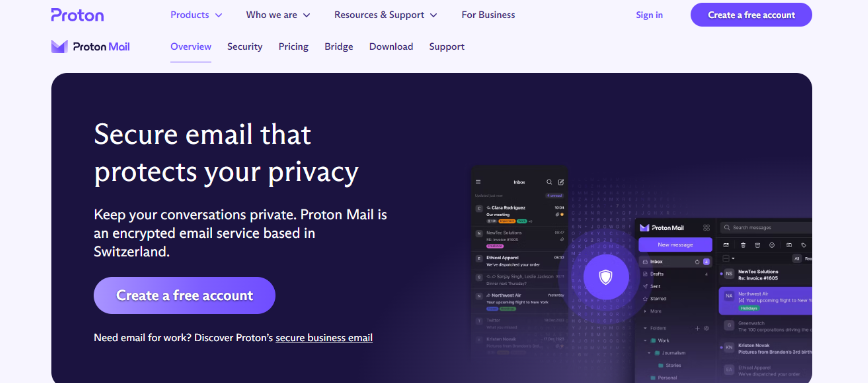
Protonmail helps you transfer all your email messages, links, and attachments to a secure platform. You can also open as many accounts as possible on the platform, often with advanced features like calendar events, app integrations, and more. The best part about working with ProtonMail is that you can access your emails anytime and anywhere.
Key Features
- Works according to local data privacy regulations
- Verified security claims and offerings for better efficiency
- Custom email addresses for individual users and businesses
- Automatically encrypted emails with plugins or add-ons.
4. Tuta

Having multiple email accounts is not enough if you do not have efficient privacy features to safeguard them. Tuta (formerly Tutanota) understands these requirements and ensures you have the most efficient email service platform. Unlike Gmail, it does not share your data with third parties.
Key Features
- Unlimited calendars at reasonable rates.
- Free 15 Tuta email addresses to manage your inbox
- 1 TB of data storage
- Green email services for better sustainability
- Open-source platform, unlike Gmail
5. iCloud

Apple’s iCloud cannot be left behind when it comes to opening alternative email accounts for professional or business uses. All these accounts enable you to use the cloud computing storage for all kinds of links and attachments. Moreover, who would not love the concept of 5 GB of free storage per account? Another plus point is that your attachments can exceed 20 MB of storage when sent through iCloud.
Key Features
- 5 GB of free storage space.
- Ad-free experience for professional messaging
- Data sync and storage through various applications
- Efficient user interface
Comparison Table
Let us compare Gmail and its alternatives to ensure you select the one that best suits your business requirements.
Conclusion
Creating free accounts on Google Workspace, specifically Gmail, has become everyone’s cup of tea now. You can follow the steps described above to create a second Gmail email account without worrying about any additional charges. All you need to do is go to the app, enter your personal and professional information, and get an account instantly. Now, the question is whether Gmail is sufficient enough to fulfill all your requirements.
Despite offering several advanced features, Gmail has its disadvantages. This calls for an alternate email service provider, like Neo. The platform’s business email services cater to several business requirements that we have already discussed above. So, switch to Neo and leverage its features right away!
Frequently Asked Questions
1. Can I have a second Gmail address?
Yes, you can have as many Gmail addresses as possible. If you want to run them all on your system, you need to follow some basic steps. Open Gmail on either your desktop or phone and move to the top-right corner, where you will find your profile picture. Now, all you need to do is select ‘add another account,’ choose the type of account you want to add, and it will be added to your system instantly.
2. Is it safe to use two different Gmail accounts?
Yes, it is absolutely safe for you to use two different Gmail accounts. Having an extra account can help you improve your security. This applies when someone hacks your primary email account or gets deactivated for some reason. You can use your alternate account, which may also have certain backup messages from the primary account.
3. Can I keep my two Google accounts separate?
You can easily separate your Google accounts on your system. All you need to do is enable the ‘Multiple Inboxes’ view, which you will find in the Settings gear icon. This will enable you to visually separate emails from two different Google accounts.
4. Can I merge my Google accounts into one?
No, you cannot merge two of your Gmail accounts into a single one. An alternative is transferring your emails, links, and attachments to another account. You can even set up the email forwarding option on either account. Another way is to create a second Gmail account if you currently utilize only one account.
Get Business Email
No domain name required
